API Response Transformer
- This tranformer can only be used with REST trigger.
- The flow must contain atleast one APIRESPONSE element in it when REST trigger used.
Configuration
- Drag and drop APIRESPONSE Transformer from the pallet.

- Left click on APIRESPONSE Transformer and Configure as given below.
- Provide status code.
- Click on the Drop down and select Content Type
application/json.
Mapping Types
| Fields | Description |
|---|---|
| GEN | Get one field from the input and mapped in another field of output |
| CN | Mapped the input as it is in output body |
| OBJ | Creates a object with target name as key |
| AR | Mapped the input into an array |
1. CN
From Dropdown select CN - Mapped the input as it is in output body. Once selected, no other mapping type can be selected. The mapping type also tries to transform the input, to the provided content-type.

3. AR
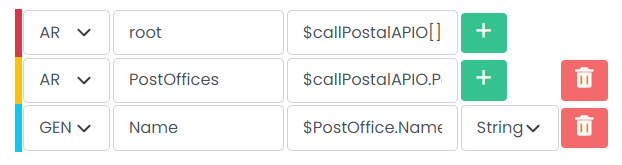
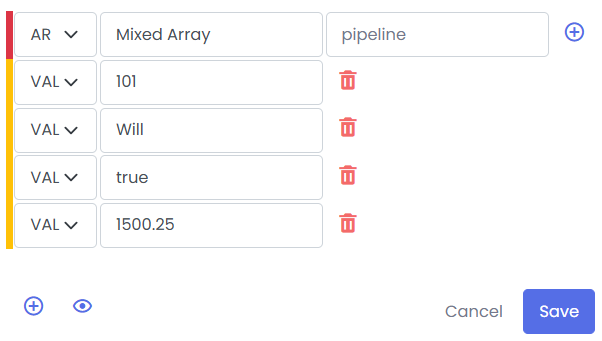
From Dropdown select AR - Mapping an array element. If the the input is array and in output you want to update that array, you can use AR element. Similarily, if you want to create a new array, you dont need to provide input, just add elements tot he array.
Array with input as array and output as array.
Array with no input. Output will be array of element.
4. GEN
From Dropdown select GEN - Gen is used to mapping value to a field. Value can be anything, from static 'Hello', to more dynamic '$Data.name'. You can provide the entire data too, if transformable, will be put put in as json element.
For example: data = $Data
{
    "data": {
        "name": "John",
        "age": 30
    }
}

5. OBJ
From Dropdown select OBJ - Creates a object with target name as key.
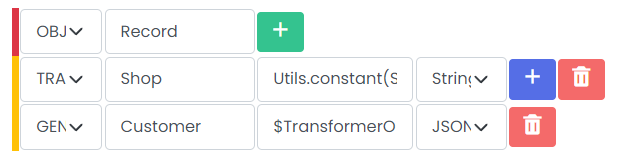
Mapping view
View response structure side by side as you create mapping.
- The mapping view only shows
JSON. - It does not shows the response structure for other types like
XML.
Mapping Functions
Mapping functions are helper utilities used to transform values during mapping.
For example, when using GEN mapping, if the value is coming from pipeline (e.g. $Data.name) and you want to modify it (like converting to lowercase), you can use a function.
To use a function:
- Type
##after the value - Select a function from the suggestions
- Hover on a function to see its usage
Example:
- $REQUEST_PARAMS.name.##lowerCase()
Following is the list of available functions and their definitions:
Strings
| Method | Description | Example |
|---|---|---|
| camelCase() | Converts string to camel case format | 'i am a man .and..i have_a__pen'.##camelCase() ⇒ "IAmAmanAndIHaveAPen" |
| capitalize() | Uppercases first character | 'cat'.##capitalize() ⇒ "Cat" |
| lowerCase() | Converts string to lowercase | 'CAT'.##lowerCase() ⇒ "cat" |
| upperCase() | Converts string to uppercase | 'cat'.##upperCase() ⇒ "CAT" |
| replace() | Replace substring | 'abaa'.##replace('a','z') ⇒ "zbzz" |
| replaceIgnoreCase() | Replace substring ignoring case | 'Abaa'.##replaceIgnoreCase('a','z') ⇒ "zbzz" |
| concatFree() | Concatenate values ignoring nulls | ##concatFree('Hello','_','World') ⇒ "Hello_World" |
| prependIfMissing() | Add prefix if missing | 'abc'.##prependIfMissing('xyz') ⇒ "xyzabc" |
| repeat() | Repeat string | 'a'.##repeat(3) ⇒ "aaa" |
| substr() | Safe substring | 'abc'.##substr(1) ⇒ "bc" |
| isAlphanumeric() | Check alphanumeric | 'A1b2c3'.##isAlphanumeric() ⇒ true |
| randomString() | Generate random string | ##randomString(10) |
Maths
| Method | Description | Example |
|---|---|---|
| calc() | Evaluate expression | ##calc(3 + 5) ⇒ 8 |
| floor() | Round down | 3.14.##floor() ⇒ 3 |
| ceil() | Round up | 3.14.##ceil() ⇒ 4 |
| round() | Round to decimal places | 3.14.##round(1) ⇒ 3.1 |
| mod() | Remainder of division | 8.##mod(3) ⇒ 2 |
| random() | Generate random number | ##random() |
Utils
| Method | Description | Example |
|---|---|---|
| if() | Conditional evaluation | ##if([$REQUEST_PARAMS.status='success'],'Valid','Invalid') |
| switch() | Multi-condition mapping | ##switch($REQUEST_PARAMS.status, W:'WAITING', Y:'DELIVERED', default:'INVALID') |
Date
| Method | Description |
|---|---|
| now() | Returns current datetime (yyyy-MM-dd HH:mm:ss) |
skipNull
Skipping the null value key in the object. If you checked this checkbox, all the keys in the final object, having null as value, will be removed.
For example:
If the final data create is this:
{
    "name": "John",
    "age": 30,
    "city": null
}
The final result for skipNull check true is following:
{
    "name": "John",
    "age": 30
}
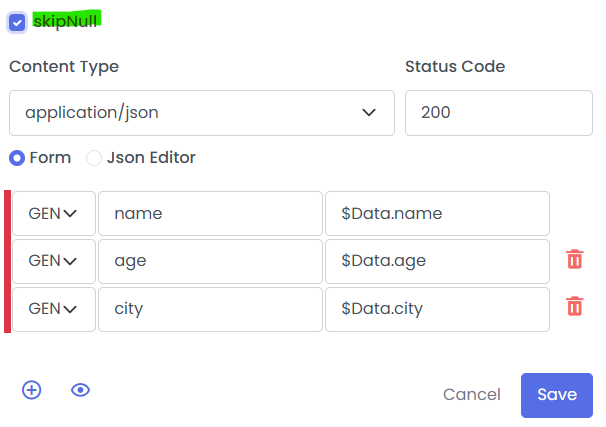
Json Editor
Json Editor outputs the same as Form Editor we have used above, where we define mapping in a form format. But Json Editor lets you map the elements like you are mapping a json, so you have a clear idea as what the output would look like.
You just have to click the check box 'jsonEditor' and a json editor pannel will open up.
Here you can edit what you want as an output. Add elements, remove, append, etc. You can add object, array or string, by selecting the dropdown.
The only difference here is how you access the dynamic values. In Form Editor you give a single '$' to get the pipeline data. In Json Editor, you have to give double dollar sign to access it, '$$'.